In the chat
Small tools that run inside your AI chat. Play one here first, then hand it to your AI and ask for changes.
What level 1 teaches- 1Guess, then playPick a starter. Before you press Play, guess what it will do. Then try it.
- 2Hand it to your AICopy for my AI copies a prompt with the tool's code inside. Paste it into your AI chat and send; in Gemini, choose Canvas first.
- 3Remix itOpen a Remix menu, copy a change, paste it into the same chat, and replace each ___ with your own words.
- 4Keep itThe Play window forgets your changes; your AI chat keeps them. Name the chat so you find it Monday, or copy a link to your work.
Where to paste it, tool by tool
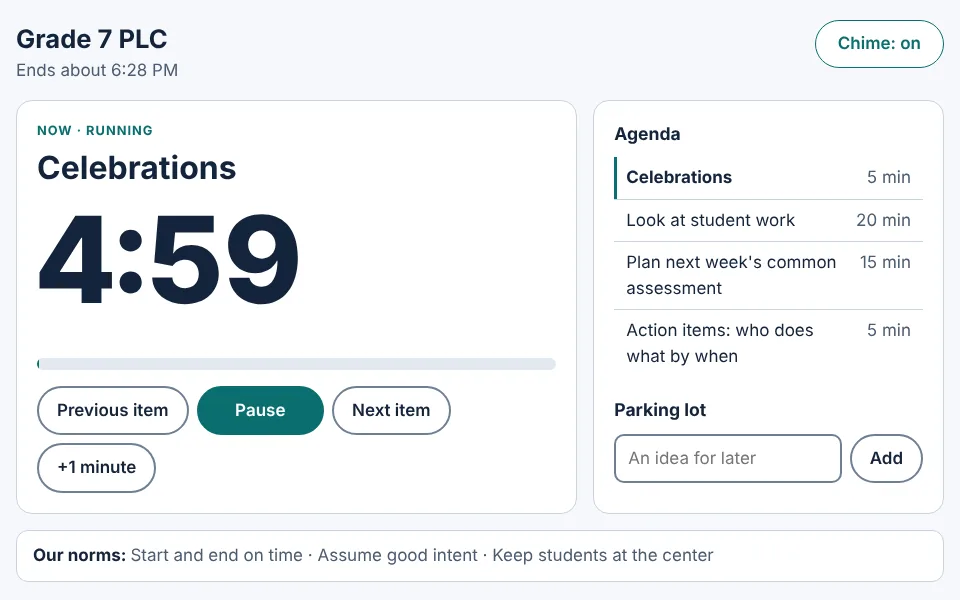
The Meeting Timer
For anyone who runs a meeting
Your agenda on screen with a big countdown, a gentle chime when it's time to move on, and a parking lot.
Monday: run your next PLC with it on the screen.
Remix menu
Make it yours
- Change the agenda to my meeting: ___ (10 minutes), ___ (15 minutes), ___ (5 minutes).
- Show our team norms along the bottom: ___.
- Use our school colors: ___ and ___.
Make it useful
- Add a protocol mode: 5 minutes of silent writing, then 10 minutes of discussion, with a different chime for each.
- Add a spinner that picks who takes notes and who keeps time.
- Add a button that copies the parking lot as a list I can paste into our notes.
Make it fun
- When time runs out, play a game-show buzzer instead of the chime.
- If we finish the agenda early, celebrate with confetti.
Look inside (no AI needed)
- Press Play, then Show the code. Find
AGENDA, change the minutes for one item, and press Run my changes.
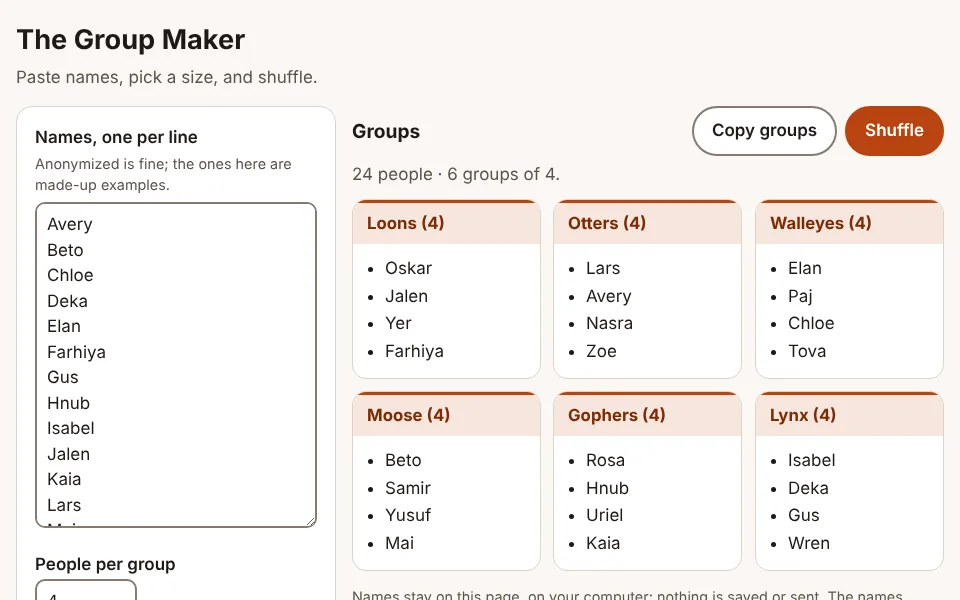
The Group Maker
For teachers, coaches, and anyone leading a workshop
Paste names, pick a size, and shuffle. It spreads your helpers out, one per group. Keeping two people apart is one remix away.
Monday: tomorrow's lab groups, made in a second.
Real names stay out of the AI. Names typed into the tool here stay in this browser window; nothing is saved or sent. Once the tool runs inside your AI chat, it runs on that company's page, so keep to made-up names there.
Remix menu
Make it yours
- Use these group names instead: ___.
- Make the group cards big enough to read on a projector from the back of the room.
Make it useful
- Add a box where I can type pairs who should be kept apart.
- Give each group roles: facilitator, recorder, timekeeper, and reporter.
- Let me save a list of names in this browser so I don't paste it every time.
Make it fun
- Make the shuffle dramatic: names spin and land one at a time, with a drumroll.
Look inside (no AI needed)
- Press Play, then Show the code. Find
GROUP_NAMES, change them to your school's mascots, and press Run my changes.
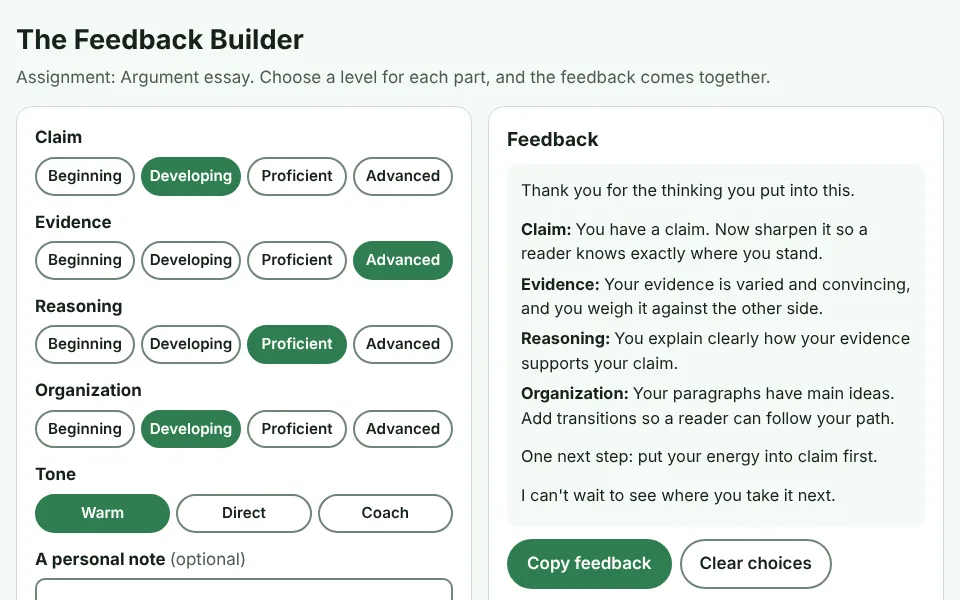
The Feedback Builder
For teachers and faculty
Choose a level for each part of a rubric, and warm, specific feedback comes together, with one clear next step.
Monday: load your own rubric and give faster, kinder feedback.
Remix menu
Make it yours
- Replace the rubric with mine: ___.
- Rewrite every comment in my voice: shorter, and a little funnier.
- Add a button that switches the comments to Spanish.
Make it useful
- Add a "glow and grow" format: one thing that's working and one thing to try.
- Let me save rubrics for different assignments and switch between them.
Make it fun
- Show a sticker for the strongest part of the work.
Look inside (no AI needed)
- Press Play, then Show the code. Find
TONES, write your own opener and closer, and press Run my changes.
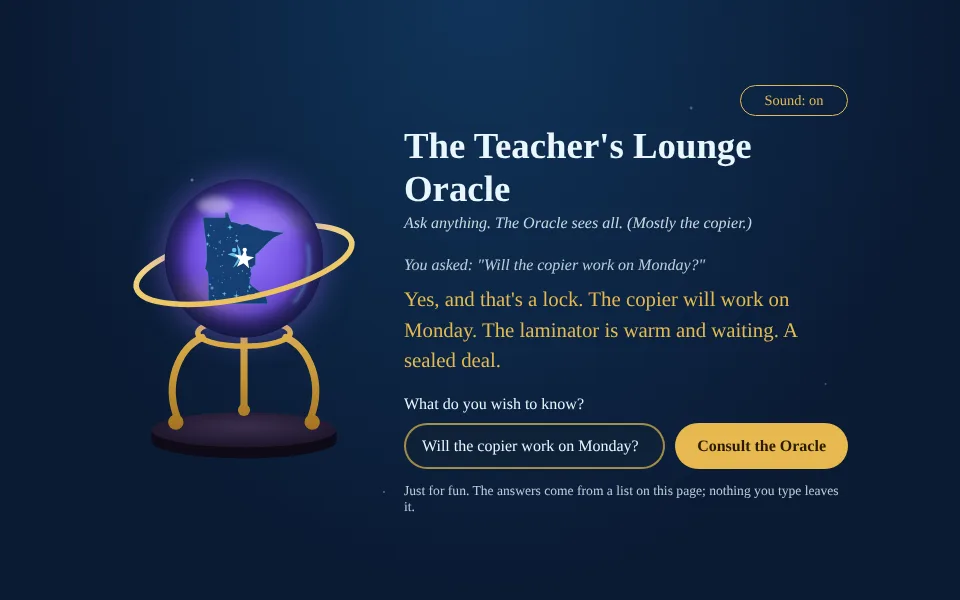
The Teacher's Lounge Oracle
Just for fun
Ask a question. Get a dramatic, slightly ridiculous prophecy, with a gong.
Monday: a vocabulary oracle or a discussion-question picker, if you remix it.
Remix menu
Make it silly
- Make the Oracle talk like an over-excited game-show host.
- Add a drumroll before the gong, and confetti when the prophecy appears.
- Write 10 new prophecies about my school, ___. Keep them kind.
Make it yours
- Change the colors to my school colors: ___ and ___.
- Add a button that reads the prophecy out loud.
- Teach the Oracle a new topic: when I ask about ___, it should answer with prophecies about ___.
Make it useful
- Turn it into a vocabulary oracle. Each spin reveals one of these words and what it means: ___.
- Turn it into a discussion-question picker for my class on ___.
Look inside (no AI needed)
- Press Play, then Show the code. Find
SPIN_SECONDS, change the 3 to a 10, and press Run my changes. - In the code, find the coffee topic under
TOPICS. Add your own prophecy in quotes, end it with a comma, press Run my changes, and ask about coffee.